
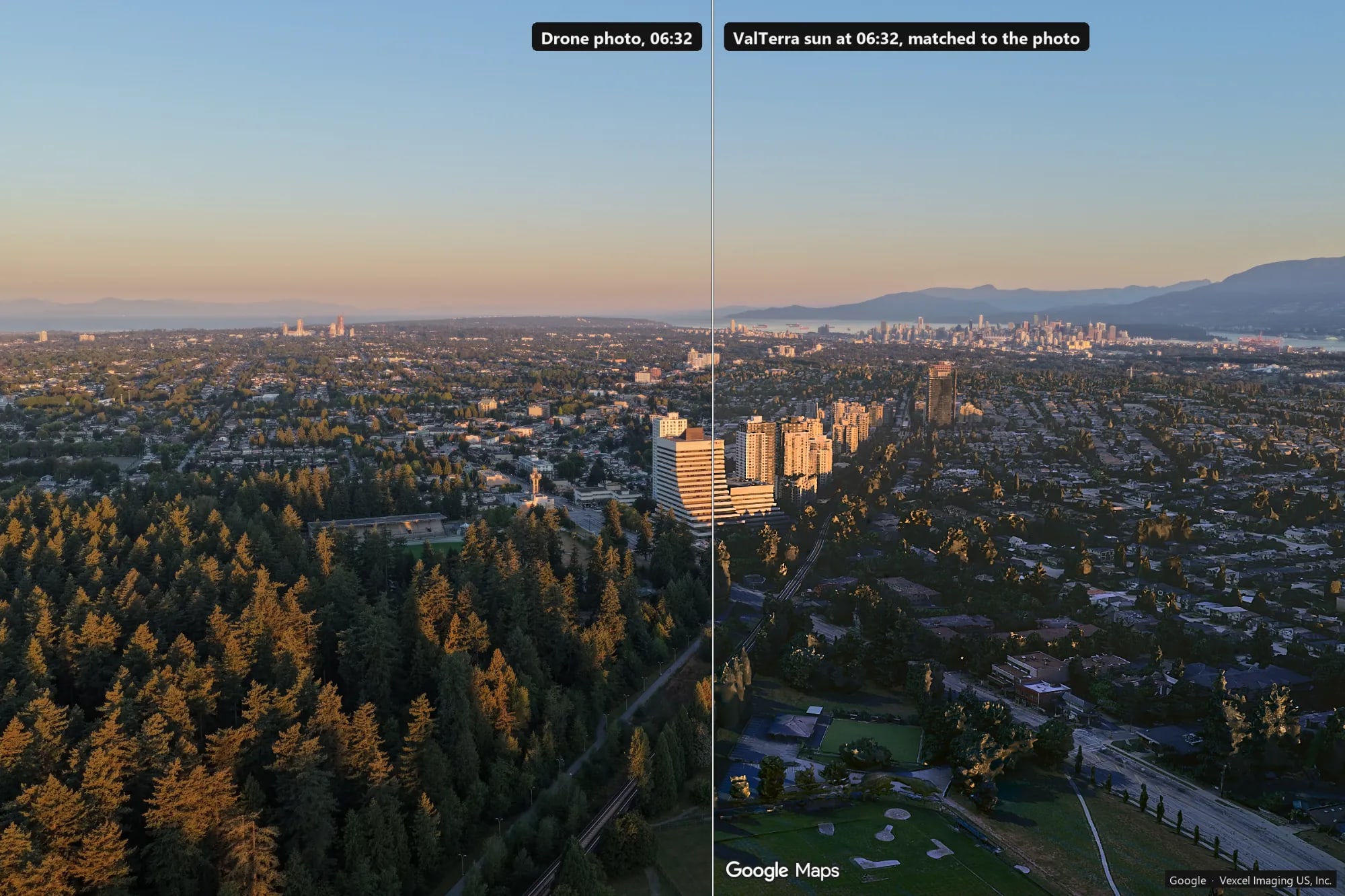
What you need
- Autodesk 3ds Max 2024–2027.
- ValTerra. The 30-day trial has every feature enabled; get it on the download page. Camera match, the automatic refine and Pixel-perfect refine work in every tier, ValTerra Lite included.
- The 3D city of your site, imported with your own Google Maps Platform key or a Cesium ion token, under your own agreement with that provider, which bills you directly. In ValTerra Lite, one import covers up to 0.25 km², at Medium detail at most, and you can build a larger area from several imports; see pricing.
- A JPG straight from a DJI drone, or any drone that writes the same flight metadata. Use the original file: edited copies often lose that metadata.
First, the real city around your site
The camera is lined up against the imported 3D city, so the city comes first; more on this import in the 3D Tiles guide. The panel calls the city the model.
- Install ValTerra and open its panel.
- Paste your key or token into the field at the top of the right-hand column and press Save.
- Type your site's address into the search bar above the globe and press Enter. Press Select area and drag a roughly square rectangle over the ground the photo shows, plus about 150 m on every side: the automatic refine ignores what the photo sees in the outer 150 m or so of the area, and beyond it. For a photo taken from about 170 m and looking across a city, that is often about 1.5 km on a side.
- On the Import model tab, set Import as to Photorealistic 3D model, pick a Detail level and press Import. The first time, ValTerra shows a short page first; confirm it to start the import. The city comes in through your own Google Maps Platform key or Cesium ion token, under your own agreement with that provider.
Import the city first, then the photos: the automatic refine runs as they come in, and only against this city, visible in the scene. With only a schematic city or terrain, cameras stay where the metadata puts them. If a photo came in first, import it again: its camera is replaced.
A larger area in ValTerra Lite. One import covers up to 0.25 km². When the photo looks further than that, build the area up: import the part the photo looks at first, then add neighbouring areas evenly on every side, one import at a time, at the same detail. Leave Trim to selection and Leave out areas already in the scene on, as they are by default, so the pieces join without overlaps. For a 1.5 km square, that is a block of 3 × 3 imports of 500 m. Keep every piece visible, and import the photos only when the city is complete.
Step by step: match a 3ds Max camera to your drone photo
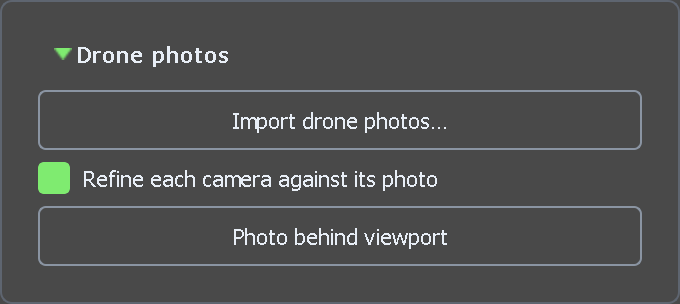
The Drone photos group on the Camera match tab.
- Open the Camera match tab.
- Check that Refine each camera against its photo is ticked. It is on by default.
- Press Import drone photos… and pick one photo or the whole flight. The whole flight is better: some drones record the gimbal heading mirrored, and from a batch ValTerra can tell how yours does it.
- While the automatic refine works, a progress bar and a Cancel button appear under the checkbox, and the status line near the bottom of the panel names the photo being matched. At the end, it says how many cameras were made and how many were placed by the photo, that is, moved by the refine.
- Each photo is now a Physical Camera named
VT_Drone_plus the photo's file name without the extension, on the ValTerra > CAMERAS layer and linked to ValTerra_Anchor. Select one, for example with Select by Name (H). - Press Photo behind viewport. If the active viewport is not already looking through a drone camera, ValTerra switches it to the selected one, and the photo appears behind the view. Press it again to switch it off.
1 drone camera created. 1 photo: 1 placed by the photo.The status line after importing one photo with ValTerra 0.6.10.
When the first photo you picked becomes a camera, the render size is set to its pixels, and Photo behind viewport does the same for each photo it shows. Switching it off puts your own background image back in the viewport settings but leaves it hidden; show it again if you had it on.
What the drone photo already knows: GPS, height, gimbal angles and lens
DJI drones, and other drones that use the same format, write flight data into each JPG as drone-dji metadata. ValTerra reads:
- Position: latitude and longitude.
- Height: the absolute altitude, and the height above take-off.
- Angles: heading, pitch and roll of the gimbal and of the aircraft.
- Lens: the calibrated focal length, or else the 35 mm-equivalent focal length from the photo's EXIF.
Ordinary EXIF GPS tags are not read, so a phone or camera photo is refused, even with a location in it.
Heading. The gimbal heading is used while it stays within 25° of the aircraft's compass; further off, ValTerra takes the aircraft's heading.
Height. The recorded altitude is usually above sea level, but the city uses a different height reference, so ValTerra converts it with the EGM96 geoid. Altitude from RTK drones, or marked GpsFusionAlt in the file, already uses the city's reference and is used as recorded. When the altitude is clearly off, ValTerra uses the height above take-off instead.
Lens. The camera gets a 36 mm sensor width and the focal length for the photo's angle of view. There is nothing to type.
VT_DroneHeadingFrom = gimbal yaw, 16 deg from the aircraft compass + fitted to the photoVT_DroneAngles = gimbal yaw -86.20 pitch -6.70 roll +0.00; flight yaw -70.40 pitch -0.60 roll +0.30; model L3D-100cVT_DroneFovH = 61.8500VT_DroneFovSource = fitVT_DroneFit = auto v1VT_DroneK1 = -0.025952VT_DroneHeightFrom = above the ellipsoid (AltitudeType GpsFusionAlt) + fitted to the photoObject Properties > User Defined for the camera made from that photo, as ValTerra 0.6.10 writes it; lines with paths and flight heights are left out.
ValTerra reads your photos on your computer and does not upload them.
Auto camera match by photo: how the camera lines itself up
A camera built from the metadata alone stands at what the panel calls the metadata pose: close, not all the way, because GPS can be metres out and the compass degrees out.
So, with the city in the scene, ValTerra compares your photo with views of the city around that position. It tries other positions, heights, roll and lens angles, and headings up to about 24° either side of the recorded one, then moves the camera to where the edges in the photo and in the city line up best.
While it searches, one viewport shows the city alone, unlit, on a flat colour. Your layout, shading and background come back when it is done; if ValTerra cannot put something back, the status line says so.
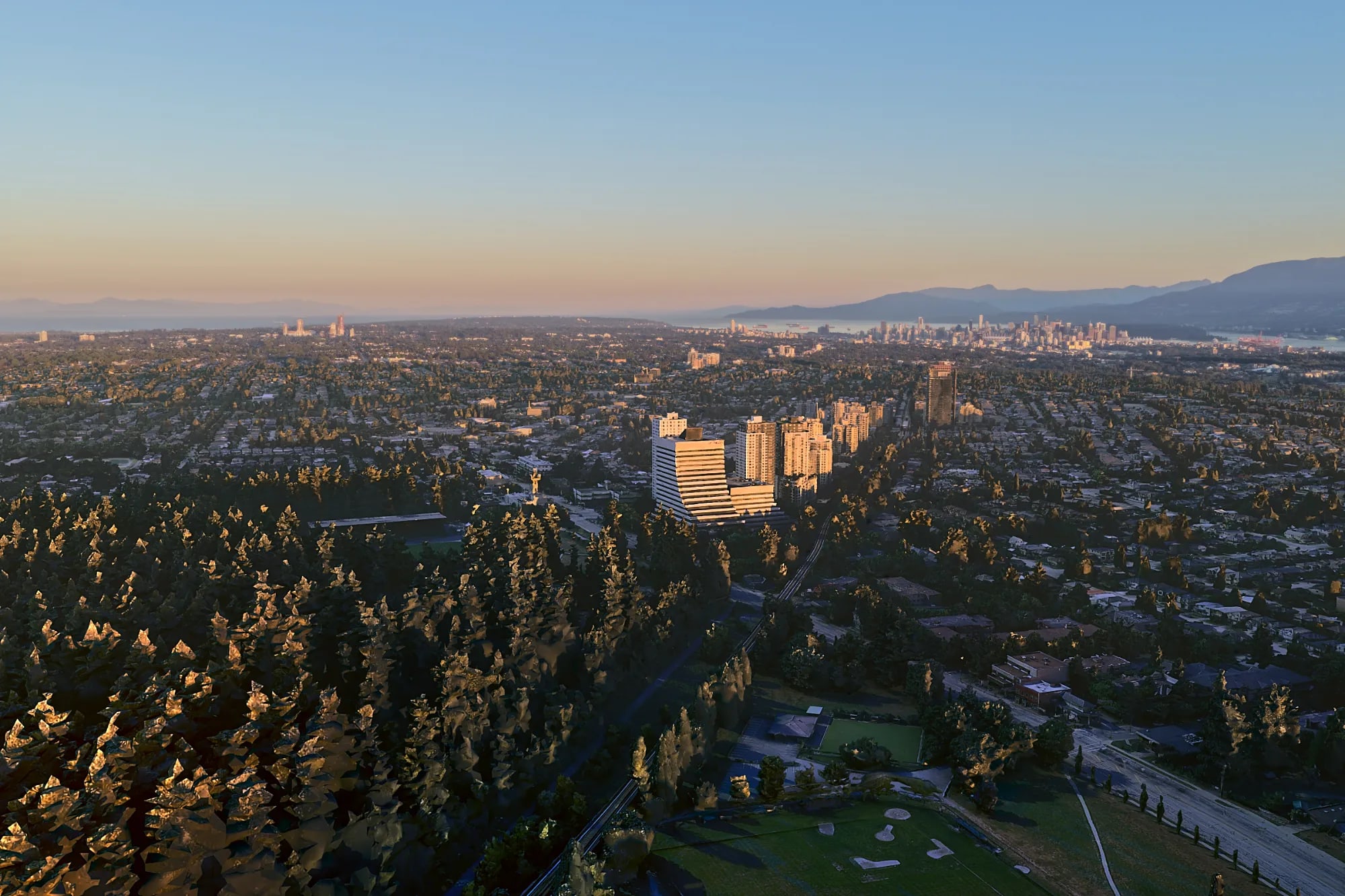
The camera ValTerra built from the same photo, looking at the imported 3D city. Rendered in Corona with the ValTerra Sun set to 06:32, then colour graded to match the photo.
This capture contains Google Maps content and is shown for promotional purposes only.
Map data: Google, Airbus, Vexcel Imaging US, Inc., water areas © OpenStreetMap contributors
When a camera needs a look, the status line counts it, as in 1 of them worth a look or 1 kept their metadata pose, then adds the line of the first photo not placed with high confidence, with one of these:
- confidence middling: the camera was moved, but its heading may wander by up to a degree. Check it, or finish it with Pixel-perfect refine.
- confidence low: the camera was moved too, and the line says why. Check it before you use it; Pixel-perfect refine is how to settle it.
- metadata pose kept: the camera stays where the metadata put it, and the line says why.
Going back. Ctrl+Z undoes the automatic refine, one camera at a time. Later, even after you reopen the scene, select the camera and press Put the metadata pose back (selected camera); the photo must still be where you imported it from.
Cancel stops the automatic refine at its next step. Cameras made so far stay, the unmatched ones at their metadata pose; photos not reached yet are not imported.
Fine-tune it: click matching points on the photo and the 3D city
When a camera is worth a look, or you want a closer match around your plot, click matching points yourself.
- Save the scene, or choose Edit > Hold: this is your way back. Ctrl+Z does not undo the solve; it undoes the step before it.
- Select the drone camera, or look through it, and press Refine selected camera… in the Pixel-perfect refine group. A window opens: the Drone photo on the left and, under Max viewport, a still shot of the active viewport on the right.
- For an easy start, look through the drone camera with Photo behind viewport off, so the shot shows the city alone. For a small or distant landmark, zoom in on it in a Perspective viewport and press Refresh view. Don't zoom in the drone camera's own view: that moves the camera.
- Left-click a landmark on the photo, such as a roof corner, then the same point on the viewport shot. The wheel zooms, right- or middle-drag pans, and a loupe shows the pixels up close.
- Repeat for at least four pairs. The window advises 6-8, spread wide across the frame; put a few near your plot. Remove pair drops the selected or the last pair. The ray missed the model means the click hit sky or empty space.
- Press Solve; until you have four pairs it reads Solve (need 4+). The window reports the reprojection error at your points before and after, in pixels, and the new focal length. Check the viewport against the photo.
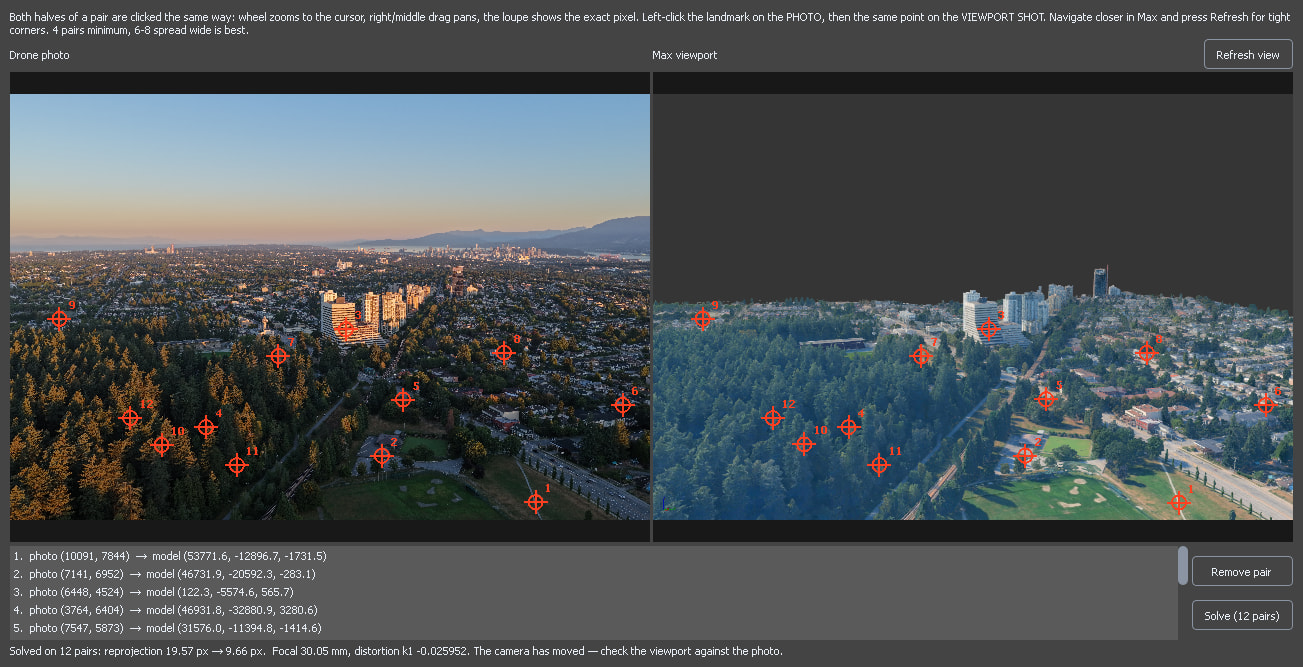
Pixel-perfect refine on the same photo, with matching points on both halves.
This capture contains Google Maps content and is shown for promotional purposes only.
Map data: Google, Airbus, Vexcel Imaging US, Inc., water areas © OpenStreetMap contributors
The solve moves and turns the camera and sets its focal length together. The pixel numbers are the error at your points, not across the whole frame. With 8 pairs or more it also works out the lens distortion; the camera stores it as VT_DroneK1, 0 with fewer pairs, and 3ds Max renders the camera without it.
Not happy with the result? Open the saved scene, or choose Edit > Fetch. Put the metadata pose back (selected camera) works too, but it goes all the way back to the metadata pose, and only on a camera the automatic refine placed; otherwise, import the photo again.
Set the sun to the date and time the photo was taken
- On the Photo studio tab, type your site's address into the search bar above the globe, press Enter and click your site in the list, or paste its latitude and longitude there and press Enter; the studio camera flies there. ValTerra works out the sun for where the studio camera stands; this is not your drone camera.
- Under Date and time, set Local time to the date and minute the photo was taken. Time zone fills itself in.
- Press Create ValTerra Sun.
ValTerra does not read the time from the photo. In File Explorer, right-click the photo and choose Properties, then Details: it is under Date taken. Use the local time at the site.
In ValTerra Lite, the free tier after the trial, a new ValTerra Sun needs a paid seat. More on light by date and hour: sun position by date and time.
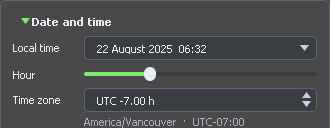
Local time set to the minute the photo was taken.
Render your building into the photo
ValTerra lines the camera up; the photomontage itself you finish in your compositing app.
- If your project has its own grid, rotate ValTerra_Anchor to it first, then place your building. The city and the drone cameras are linked to the anchor and turn with it; your building is not.
- Hide the city before you render: in Tools > Layer Explorer..., turn off the city's own layer inside ValTerra. The photo already shows the real city. For shadows on the ground, use your own ground plane or shadow catcher.
- Where part of your building should stand behind a real building or tree in the photo, mask that part in compositing.
- Render through the drone camera with an alpha channel, at the size the import set, and lay the render over the photo. Photo behind viewport works in the viewport only; to have the photo in the render, put it into Rendering > Environment.
Camera under the ground, too high or turned away? What to check
- The photo is refused. The status line says it was skipped, with No drone GPS metadata found in …, … carries no camera or The photo carries no usable focal length. Use the original JPG from the drone's card, not a copy from an editor, a phone gallery or a messenger.
- The camera kept its metadata pose, or the refine never ran. Check that the city came in before the photo and is visible, that Refine each camera against its photo was ticked, and that the imported area covers what the photo shows, with room around it. Then import the photo again, or place the camera with Pixel-perfect refine.
- Camera under the ground or far too high. Read
VT_DroneHeightFromunder Object Properties > User Defined: it names the altitude reference and any fallback. Pixel-perfect refine also solves the height. - Camera turned away. Read
VT_DroneHeadingFrom: gimbal or aircraft heading, and how far apart they were. The automatic refine looks up to about 24° either side of the recorded heading; beyond that, use Pixel-perfect refine with pairs spread wide. - The photo has moved. ValTerra says the photo the camera was made from is no longer where it was. Put it back, or import it again. A camera from a colleague's scene points to a path on their computer.
Questions about putting your building into a drone photo
How do I put my 3D building into a real drone photo of the site?
Import the 3D city around the site with your own Google Maps Platform key or Cesium ion token, then the photo on the Camera match tab: ValTerra builds the camera and lines it up with the city. Hide the city, render at the photo's size and lay the render over the photo.
How do I match a 3ds Max camera to a photo?
For a drone photo, ValTerra builds the camera from the photo's flight metadata and lines it up with the 3D city you imported with your own Google Maps Platform key or Cesium ion token. You can finish with Pixel-perfect refine.
Which drones work? Can I use a photo from my phone?
A JPG straight from a DJI drone, or any drone that writes the same flight metadata. Phone and camera photos are refused: ValTerra does not read their ordinary GPS tags.
Do I need a key for this?
Yes, for the 3D city: your own Google Maps Platform key or a Cesium ion token, under your own agreement with that provider, which bills you directly.
Does ValTerra upload my drone photos?
No. ValTerra reads your photos and their metadata on your computer and does not upload them.
Can I undo the refine and get the original camera back?
Ctrl+Z undoes the automatic refine, one camera at a time; later, Put the metadata pose back (selected camera) does the same. Ctrl+Z does not undo Pixel-perfect refine, so save the scene or use Edit > Hold before Solve. Importing the photo again always makes a fresh camera.
How do I get the sun in my render to agree with the photo?
On the Photo studio tab, type your site's address into the search bar above the globe, press Enter and click your site in the list. Then set Local time to when the photo was taken and press Create ValTerra Sun.
ValTerra is an independent product and is not affiliated with, endorsed by, or sponsored by Autodesk, Inc. or Google LLC.